作者: 8bto

  • debian apt-get update:public key 错误修复

    apt-get update 出现 这种错误
    Reading package lists… Done
    W: There is no public key available for the following key IDs:
    7638D0442B90D010
    W: There is no public key available for the following key IDs:
    7638D0442B90D010
    W: There is no public key available for the following key IDs:
    9D6D8F6BC857C906

    解决方法
    apt-get install debian-keyring debian-archive-keyring
    apt-get update

  • Depends: init-system-helpers (>= 1.18~) but it is not installable

    Depends: init-system-helpers (>= 1.18~) but it is not installable
    E: Unable to correct problems, you have held broken packages.

    Working on debian wheezy…

    I added backports to my apt repo “deb http://ftp.de.debian.org/debian wheezy-backports main” and performed a “apt-get update”. Afterwards, the apt-get install docker-engine completed fine.

    Personally, I’m leaving backports commented out for now but in my conf as a reminder…

  • How to Disable a Services in Linux

    In Red Hat based distributions such as Fedora and CentOS, make use of a script called ‘chkconfig‘ to enable and disable the running services in Linux.

    For example, lets disable the Apache web server at the system startup.

    [avishek@tecmint]# chkconfig httpd off
    [avishek@tecmint]# chkconfig httpd –del

    In Debian based distributions such as Ubuntu, Linux Mint and other Debian based distributions use a script called update-rc.d.

    For example, to disable the Apache service at the system startup execute the following command. Here ‘-f’ option stands for force is mandatory.

    [avishek@tecmint]# update-rc.d -f a

  • AVG Internet Security 2015 key

    8MEH-RO9SN-AVP3P-E3SMR-PK3ZG-HEMBR-ACED
    8MEH-R6O2P-VYKXS-BAYWR-CDLLX-WEMBR-ACED
    8MEH-RFOD4-SXWR8-JRTQA-JVMEN-WEMBR-ACED
    8MEH-RCKOP-BP9KK-YW8EA-6ZMMK-SEMBR-ACED
    8MEH-RS47Y-82HT8-GONVA-BO3R8-DEMBR-ACED
    8MEH-RQX93-WYZKW-BE2FR-QX9FE-PEMBR-ACED
    8MEH-REDSL-7EKFC-ULA8R-EEJMJ-4EMBR-ACED
    8MEH-RSTBP-ST9JM-2TVHA-XL9M9-LEMBR-ACED
    8MEH-RR6GC-KLJJD-S7DBA-NWPS7-EEMBR-ACED

  • 在shell命令行下让mplayer循环播放和播放列表

    第一步:将所有要播放的多媒体文件放在~/music/目录下;
      
       第二步:进入music目录,执行ls > music.lst,则在music目录下生成一个名为music.lst的列表文件,并把music目录下的文件名写入到music.lst文件中;
      
       第三步:运行mplayer -playlist music.lst即可实现列表播放
      
       值得注意的是第二步中,生成的多媒体列表文件music.lst一定要与要播放的多媒体文件保存在同一个目录中,否则mplayer播放时会有找不到文件的错误提示。
      
       如果要删除一些不想听的多媒体文件,则用编辑器打开music.lst列表文件,删除对应的文件名即可,保存时要注意一行一个文件名,不能有空行。
      
       如果要增加文件,执行命令echo filename >> music.lst即可,即可将新增的文件名追加在music.lst列表文件末。

  • Blocking abusive IP addresses using IPTABLES Firewall in Debian

    In one of our previous article we have posted an instructional guide on how to secure your Debian/Ubuntu based VPS using IPTABLES/Netfilter.

    In the following article we are adding a blacklist to the firewall script which will allow you to block any abusive IP addresses or ranges of IPs in your Debian or Ubuntu based virtual server.

    What is iptables?

    It is is a user space application program that allows a system administrator to configure the tables provided by the Linux kernel firewall (implemented as different Netfilter modules) and the chains and rules it stores.

    Before proceeding any further, make sure you read the article on how to secure/design the firewall in your linux vps. This includes:

    Flushing the old firewall rules
    Determining service ports
    Setting-up default policies
    Setting-up your firewall rules
    Saving your firewall rules
    BLOCKING IPs USING IPTABLES
    To block some abusive IP address or range of IPs, you can use the following iptables rules:
    ## iptables -I INPUT -s 1.2.3.4 -j DROP
    ## iptables -I INPUT -s 1.2.0.0/16 -j DROP

    CREATING THE BLACKLIST
    For better readability and maintenance, it is a good idea to have all abusing IPs in one particular file, for example /etc/blacklist.ips. This way, you can add the IP addresses or subnets in this file (one IP or subnet per line) and use the fwall-rules script below to block anything listed in this file.

    So, create or edit /usr/local/bin/fwall-rules and make it as follows:

    #!/bin/bash
    #
    # iptables firewall script
    # http://www.rosehosting.com
    #

    IPTABLES=/sbin/iptables
    BLACKLIST=/etc/blacklist.ips

    echo ” * flushing old rules”
    ${IPTABLES} –flush
    ${IPTABLES} –delete-chain
    ${IPTABLES} –table nat –flush
    ${IPTABLES} –table nat –delete-chain

    echo ” * setting default policies”
    ${IPTABLES} -P INPUT DROP
    ${IPTABLES} -P FORWARD DROP
    ${IPTABLES} -P OUTPUT ACCEPT

    echo ” * allowing loopback devices”
    ${IPTABLES} -A INPUT -i lo -j ACCEPT
    ${IPTABLES} -A OUTPUT -o lo -j ACCEPT

    ${IPTABLES} -A INPUT -p tcp ! –syn -m state –state NEW -j DROP
    ${IPTABLES} -A INPUT -m state –state ESTABLISHED,RELATED -j ACCEPT

    ## BLOCK ABUSING IPs HERE ##
    #echo ” * BLACKLIST”
    #${IPTABLES} -A INPUT -s _ABUSIVE_IP_ -j DROP
    #${IPTABLES} -A INPUT -s _ABUSIVE_IP2_ -j DROP

    echo ” * allowing ssh on port 5622″
    ${IPTABLES} -A INPUT -p tcp –dport 5622 -m state –state NEW -j ACCEPT

    echo ” * allowing ftp on port 21″
    ${IPTABLES} -A INPUT -p tcp –dport 21 -m state –state NEW -j ACCEPT

    echo ” * allowing dns on port 53 udp”
    ${IPTABLES} -A INPUT -p udp -m udp –dport 53 -j ACCEPT

    echo ” * allowing dns on port 53 tcp”
    ${IPTABLES} -A INPUT -p tcp -m tcp –dport 53 -j ACCEPT

    echo ” * allowing http on port 80″
    ${IPTABLES} -A INPUT -p tcp –dport 80 -m state –state NEW -j ACCEPT

    echo ” * allowing https on port 443″
    ${IPTABLES} -A INPUT -p tcp –dport 443 -m state –state NEW -j ACCEPT

    echo ” * allowing smtp on port 25″
    ${IPTABLES} -A INPUT -p tcp -m state –state NEW -m tcp –dport 25 -j ACCEPT

    echo ” * allowing submission on port 587″
    ${IPTABLES} -A INPUT -p tcp -m state –state NEW -m tcp –dport 587 -j ACCEPT

    echo ” * allowing imaps on port 993″
    ${IPTABLES} -A INPUT -p tcp -m state –state NEW -m tcp –dport 993 -j ACCEPT

    echo ” * allowing pop3s on port 995″
    ${IPTABLES} -A INPUT -p tcp -m state –state NEW -m tcp –dport 995 -j ACCEPT

    echo ” * allowing imap on port 143″
    ${IPTABLES} -A INPUT -p tcp -m state –state NEW -m tcp –dport 143 -j ACCEPT

    echo ” * allowing pop3 on port 110″
    ${IPTABLES} -A INPUT -p tcp -m state –state NEW -m tcp –dport 110 -j ACCEPT

    echo ” * allowing ping responses”
    ${IPTABLES} -A INPUT -p ICMP –icmp-type 8 -j ACCEPT

    # DROP everything else and Log it
    ${IPTABLES} -A INPUT -j LOG
    ${IPTABLES} -A INPUT -j DROP

    #
    # Block abusing IPs
    # from ${BLACKLIST}
    #
    if [[ -f “${BLACKLIST}” ]] && [[ -s “${BLACKLIST}” ]]; then
    echo ” * BLOCKING ABUSIVE IPs”
    while read IP; do
    ${IPTABLES} -I INPUT -s “${IP}” -j DROP
    done < <(cat “${BLACKLIST}”) fi # # Save settings # echo ” * SAVING RULES” if [[ -d /etc/network/if-pre-up.d ]]; then if [[ ! -f /etc/network/if-pre-up.d/iptables ]]; then echo -e “#!/bin/bash” > /etc/network/if-pre-up.d/iptables
    echo -e “test -e /etc/iptables.rules && iptables-restore -c /etc/iptables.rules” >> /etc/network/if-pre-up.d/iptables
    chmod +x /etc/network/if-pre-up.d/iptables
    fi
    fi

    iptables-save > /etc/fwall.rules
    iptables-restore -c /etc/fwall.rules

    make sure the script is executable by adding an ‘x’ bit to it:
    chmod +x /usr/local/bin/fwall-rules
    APPLYING THE RULES
    To apply the firewall rules and block the abusers, you need to just execute the fwall-rules script and that’s it.

    ## fwall-rules
    * flushing old rules
    * setting default policies
    * allowing loopback devices
    * allowing ssh on port 5622
    * allowing ftp on port 21
    * allowing dns on port 53 udp
    * allowing dns on port 53 tcp
    * allowing http on port 80
    * allowing https on port 443
    * allowing smtp on port 25
    * allowing submission on port 587
    * allowing imaps on port 993
    * allowing pop3s on port 995
    * allowing imap on port 143
    * allowing pop3 on port 110
    * allowing ping responses
    * BLOCKING ABUSIVE IPs
    * SAVING RULES

    [download id=”8″]
  • How to mount Google Drive on debian

    apt-get install ocaml camlp4-extra
    git clone https://github.com/OCamlPro/opam.git
    cd opam
    ./configure
    make
    sudo make install

    apt-get install m4 libcurl4-gnutls-dev libfuse-dev libsqlite3-dev
    opam init //**if error( opam init https://opam.ocaml.org/1.1 )
    opam update
    opam install google-drive-ocamlfuse

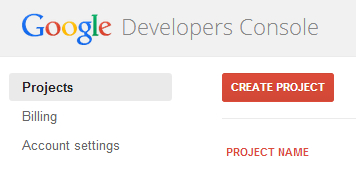
    安装成功后,进入Google Project建立一个Project
    https://console.developers.google.com/project
    googleproject
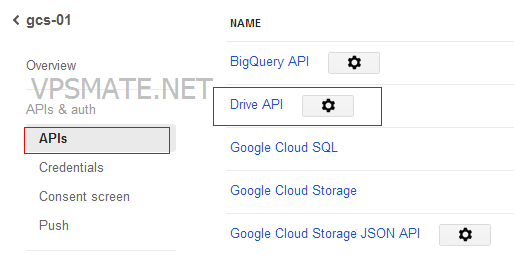
    进入项目的API设置开启Drive API
    googledriveenabledriveapi
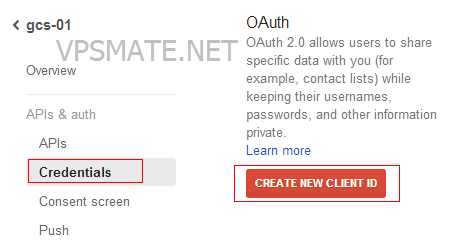
    建立一个OAuth验证ID
    google_project_credentials_oauth
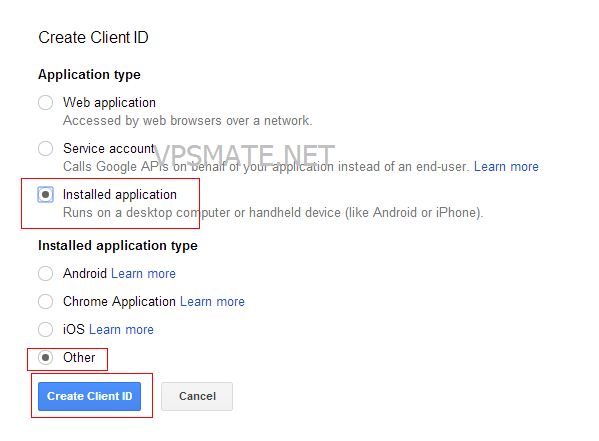
    建立项目的Client ID
    google_project_create_client_ID
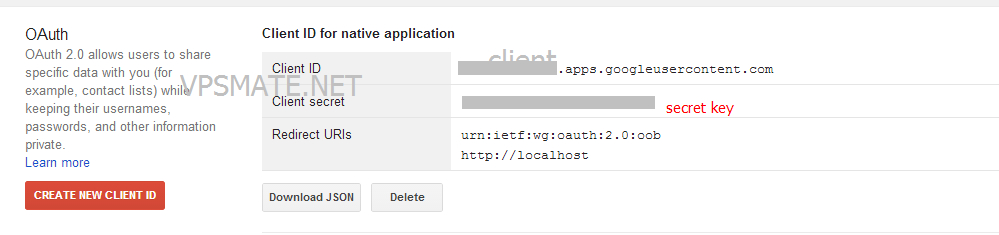
    记录下这两个生成的参数做稍后使用
    google_project_client_id_native_application
    进入/root/.opam/system/bin/目录绑定项目
    cd /root/.opam/system/bin/
    ./google-drive-ocamlfuse -headless -label googledrive -id ##Client ID##.apps.googleusercontent.com -secret ##secret key##
    执行完上述指令会返回一个https的网址在浏览器粘贴到浏览器后会进入google页面询问是否允许访问该项目,选accept然后记录下浏览器页面返回的密码,粘贴进去回车即可。
    进入~/.gdfuse/googledrive
    cd ~/.gdfuse/googledrive
    nano config
    编辑config修改内容例如
    verification_code= [key returned from browser]
    client_id= [eg. 123123231.apps.googleusercontent.com]
    client_secret= [eg. ASDQWEWGSD!$@#@#ASD]
    完成配置加载Google Drive远端存储到本地/googledrive

    mkdir /googledrive
    cd ~/.opam/system/bin
    ./google-drive-ocamlfuse -label googledrive /googledrive

  • Create Fake Swap in OpenVZ VPS if you get swapon failed: Operation not permitted Error

    if you get swapon failed: Operation not permitted Error even if you run as root it is because in your VPS swap creation is not allowed follow below steps to Create Fake Swap in OpenVZ VPS

    [root@server] free -m total used free Mem: 4096 104 3991 -/+ buffers/cache: 104 3991
    Swap: 0 0 0

    create shell script file add lines like below
    [root@server] vi fakeswap.sh

    #!/bin/bash
    SWAP=”${1:-512}”
    NEW=”$[SWAP*1024]”; TEMP=”${NEW//?/ }”; OLD=”${TEMP:1}0″
    umount /proc/meminfo 2> /dev/null
    sed “/^Swap\(Total\|Free\):/s,$OLD,$NEW,” /proc/meminfo > /etc/fake_meminfo
    mount –bind /etc/fake_meminfo /proc/meminfo
    free -m

    [root@server] chmod +x fakeswap.sh
    [root@server] sh fakeswap.sh [root@server] free -m total used free Mem: 4096 104 3991 -/+ buffers/cache: 104 3991 Swap: 512 0 512 to create 1024MB Swap run like below [root@server] sh fakeswap.sh 1024 [root@server] free -m total used free Mem: 4096 104 3991 -/+ buffers/cache: 104 3991 Swap: 1024 0 1024 – See more at: http://linux-problem-solver.blogspot.sg/2013/08/create-fake-swap-in-openvz-vps-if-you-get-swapon-failed-operation-not-permitted-error.html#sthash.Eeknzpcf.dpuf

  • debian install shorewall

    apt-get install shorewall
    cp /usr/share/doc/shorewall/examples/one-interface/interfaces /etc/shorewall/interfaces
    cp /usr/share/doc/shorewall/examples/one-interface/policy /etc/shorewall/policy
    cp /usr/share/doc/shorewall/examples/one-interface/rules /etc/shorewall/rules
    cp /usr/share/doc/shorewall/examples/one-interface/zones /etc/shorewall/zones

    Now open /etc/shorewall/policy file and change the line:
    net all DROP info
    removing info directive given it fills the system logs:
    net all DROP
    Now open /etc/shorewall/rules and add the following rules at the bottom of the file:
    HTTP/ACCEPT net $FW
    SSH/ACCEPT net $FW
    FTP/ACCEPT net $FW
    # real apache since varnish listens on port 80
    #ACCEPT net $FW tcp 8080
    ACCEPT net:192.168.1.10 $FW TCP 22

    vi /etc/shorewall/shorewall.conf STARTUP_ENABLED=No —— STARTUP_ENABLED=Yes
    vi /etc/default/shorewall startup=0 —— startup=1

    /etc/init.d/shorewall start

  • Debian remove exim4

    apt-get –purge remove exim4
    apt-get –purge remove exim4-base
    dpkg -l | grep exim
    dpkg -P exim_name