作者: 8bto

  • 实战Exim4配置

    经过多方查阅资料,终于将exim4的配置搞定了,结果才发现,原来是这么简单。下面我就把我配置的过程写出来,与大家分享。
    1)在命令行输入dpkg-reconfigure exim4-config来进行配置。
    2)将配置文档分拆成小文件吗?(否)
    3)邮件系统配置的常见模式:(互联网站;直接通过 SMTP 发送或接收信件)
    4)系统邮件名称:(我的机器名默认的)
    5)要监听的入站 SMTP 连接的 IP 地址:(空白,就是什么都不写)
    6)其它可接受的邮件目的地址:( localhost.localdomain:debian:localhost)
    注:我的主机名是debian
    7)中转(relay)邮件的域名: (空白)
    8)为这些主机进行邮件转发:(空白)
    9)保持最小 DNS 查询量吗(按需拔号 Dial-on-Demand)? (否)

    测试发邮件
    echo “text” | mail -s “title” xxxxxxx@qq.com

  • web server setup with Debian 7 (Wheezy)

    Setup bash and update the system

    cp /etc/skel/.bashrc /root/.bashrc
    apt-get update
    apt-get dist-upgrade

    Configure hostname correctly

    Make sure to have the following two lines (with the same format) at the top of your /etc/hosts file

    127.0.0.1 localhost.localdomain localhost
    xxx.xxx.xxx.xxx web1.myserver.com web1

    Note: xxx.xxx.xxx.xxx is the public IP address assigned to your server.
    Install all needed packages

    apt-get install php5 mysql-server mysql-client apache2 iptables phpmyadmin varnish shorewall vsftpd php5-cli php5-curl php5-dev php5-gd php5-idn php5-imagick php5-imap php5-memcache php5-ming php5-pspell php5-recode php5-snmp php5-sqlite php5-tidy php5-xcache php5-xmlrpc php-apc php-pear php-xml-rpc postfix apg ca-certificates heirloom-mailx

    MySQL/PhpMyAdmin:

    mysql root password: xxx
    repeat mysql root password: xxx
    web server to reconfigure automatically: apache2
    configure database for phpmyadmin with dbconfig-common? Yes
    Password of the database’s administrative user: xxx
    Password for phpmyadmin: xxx
    Password confirmation: xxx

    Postfix:

    Select Internet Site
    System mail name: (insert here the FQDN, for example web1.myserver.com)

    Setup FTP

    Stop VSFTP server:

    /etc/init.d/vsftpd stop

    Create backup configuration:

    mv /etc/vsftpd.conf /etc/vsftpd.conf.backup

    Add new configuration:

    listen=YES
    listen_port=21
    anonymous_enable=NO
    local_enable=YES
    guest_enable=YES
    guest_username=nobody
    user_sub_token=$USER
    local_root=/var/www/vhosts/$USER
    virtual_use_local_privs=YES
    user_config_dir=/etc/vsftpd/users
    pam_service_name=vsftpd_local_and_virtual
    chroot_local_user=YES
    chroot_list_enable=YES
    chroot_list_file=/etc/vsftpd/chroot_list
    ftpd_banner=Welcome to my ftp server
    write_enable=YES
    download_enable=YES
    dirlist_enable=YES
    local_umask=022
    dirmessage_enable=YES
    xferlog_enable=YES
    xferlog_file=/var/log/xferlog
    connect_from_port_20=YES
    connect_timeout=60
    data_connection_timeout=300
    idle_session_timeout=300
    local_max_rate=0
    max_clients=0
    max_per_ip=3

    Create an empty chroot_list file:

    touch /etc/vsftpd/chroot_list

    Start VSFTP server:

    /etc/init.d/vsftpd start

    Setup Apache

    Stop Apache web server:

    /etc/init.d/apache2 stop

    Backup Apache configuration:

    cp /etc/apache2/apache2.conf /etc/apache2/apache2.conf.backup

    Edit the following lines in /etc/apache2/apache2.conf

    From Timeout 300 to Timeout 45
    From KeepAliveTimeout 5 to KeepAliveTimeout 15
    Change the mpm_prefork_module section like the following:


    StartServers 5
    MinSpareServers 5
    MaxSpareServers 10
    ServerLimit 400
    MaxClients 400
    MaxRequestsPerChild 10000

    Edit /etc/apache2/ports.conf and change the port 80 with 8080 since we are going to use Varnish:

    NameVirtualHost *:8080
    Listen 8080

    Change the port (from 80 to 8080) also in the default virtual host /etc/apache2/sites-enabled/000-default Now restart Apache:

    /etc/init.d/apache2 restart

    Setup Varnish

    Stop Varnish daemon:

    /etc/init.d/varnish stop

    Open /etc/varnish/default.vcl and make sure the backend section is like this:

    backend default {
    .host = “127.0.0.1”;
    .port = “8080”;
    .connect_timeout = 600s;
    .first_byte_timeout = 600s;
    .between_bytes_timeout = 600s;
    }

    Now edit /etc/default/varnish and set the DAEMON_OPTS variable like this:

    DAEMON_OPTS=”-a :80 \
    -T localhost:6082 \
    -f /etc/varnish/default.vcl \
    -p thread_pools=4 \
    -p thread_pool_max=1500 \
    -p listen_depth=2048 \
    -p lru_interval=1800 \
    -h classic,169313 \
    -p max_restarts=6 \
    -p connect_timeout=600 \
    -p send_timeout=2000 \
    -s malloc,2G”

    Restart Varnish:

    /etc/init.d/varnish restart

    Setup MySQL

    MySQL is already configured. You only need to log slow queries (that is often usefult during slow load page investigation). Todo it, open /etc/mysql/my.cnf and decomment the following two lines:

    log_slow_queries = /var/log/mysql/mysql-slow.log
    long_query_time = 2

    Configure Shorewall firewall rules

    Copy the default configuration for one interface:

    cp /usr/share/doc/shorewall/examples/one-interface/interfaces /etc/shorewall/interfaces
    cp /usr/share/doc/shorewall/examples/one-interface/policy /etc/shorewall/policy
    cp /usr/share/doc/shorewall/examples/one-interface/rules /etc/shorewall/rules
    cp /usr/share/doc/shorewall/examples/one-interface/zones /etc/shorewall/zones

    Now open /etc/shorewall/policy file and change the line:

    net all DROP info

    removing info directive given it fills the system logs:

    net all DROP

    Now open /etc/shorewall/rules and add the following rules at the bottom of the file:

    HTTP/ACCEPT net $FW
    SSH/ACCEPT net $FW
    FTP/ACCEPT net $FW

    # real apache since varnish listens on port 80
    #ACCEPT net $FW tcp 8080

    NOTE: in case you want to allow ICMP (Ping) traffic from a specific remote hosts you need to add a rule similar to the following where xxx.xxx.xxx.xxx is the remote IP address, before the Ping(DROP) rule:

    Ping(ACCEPT) net:xxx.xxx.xxx.xxx $FW

    Now edit /etc/default/shorewall and change startup=0 to startup=1 You are now ready to start the firewall:

    /etc/init.d/shorewall start

    Setup Postfix

    Stop postfix server:

    /etc/init.d/postfix stop

    Edit /etc/mailname and set your server domain name, for example:

    server1.mycompany.com

    Then, in order to monitor mail traffic coming from PHP you need to edit /etc/php5/apache2/php.ini. Go to [mail function] section and set the following two options:

    sendmail_path = /usr/local/bin/sendmail-wrapper
    auto_prepend_file = /usr/local/bin/env.php

    Now create the two files above:

    sendmail-wrapper:

    #!/bin/sh
    logger -p mail.info sendmail-wrapper.sh: site=${HTTP_HOST}, client=${REMOTE_ADDR}, script=${SCRIPT_NAME}, pwd=${PWD}, uid=${UID}, user=$(whoami)
    /usr/sbin/sendmail -t -i $*

    env.php:

    Now make they both have executable flag:

    chmod +x /usr/local/bin/sendmail-wrapper
    chmod +x /usr/local/bin/env.php

    Add also /usr/local/bin/ to the open_basedir php list in /etc/apache2/conf.d/phpmyadmin.conf

    php_admin_value open_basedir /usr/share/phpmyadmin/:/etc/phpmyadmin/:/var/lib/phpmyadmin/:/usr/local/bin/

    Restart Postfix:

    /etc/init.d/postfix start

    Prepare environment

    Create all needed directories and files

    mkdir /root/cron_scripts
    mkdir -p /var/www/vhosts
    mkdir -p /etc/vsftpd/users
    touch /etc/vsftpd/passwd

    Now download all tools to manage the server locally:

    wget https://raw.githubusercontent.com/matteomattei/servermaintenance/master/LAMP/ADD_ALIAS.sh
    wget https://raw.githubusercontent.com/matteomattei/servermaintenance/master/LAMP/ADD_DOMAIN.sh
    wget https://raw.githubusercontent.com/matteomattei/servermaintenance/master/LAMP/ADD_ALIAS.sh
    wget https://raw.githubusercontent.com/matteomattei/servermaintenance/master/LAMP/ADD_FTP_VIRTUAL_USER.sh
    wget https://raw.githubusercontent.com/matteomattei/servermaintenance/master/LAMP/ALIAS_LIST.sh
    wget https://raw.githubusercontent.com/matteomattei/servermaintenance/master/LAMP/DEL_ALIAS.sh
    wget https://raw.githubusercontent.com/matteomattei/servermaintenance/master/LAMP/DEL_DOMAIN.sh
    wget https://raw.githubusercontent.com/matteomattei/servermaintenance/master/LAMP/DEL_FTP_VIRTUAL_USER.sh
    wget https://raw.githubusercontent.com/matteomattei/servermaintenance/master/LAMP/DOMAIN_LIST.sh
    wget https://raw.githubusercontent.com/matteomattei/servermaintenance/master/LAMP/MYSQL_CREATE.sh
    wget https://raw.githubusercontent.com/matteomattei/servermaintenance/master/LAMP/UPDATE_ALL_FTP_PASSWORD.sh
    wget https://raw.githubusercontent.com/matteomattei/servermaintenance/master/LAMP/UPDATE_FTP_PASSWORD.sh
    chmod 770 *.sh

    Download also the tools that will be used with cron:

    cd /root/cron_scripts
    wget https://raw.githubusercontent.com/matteomattei/servermaintenance/master/LAMP/cron_scripts/backup_mysql.sh
    wget https://raw.githubusercontent.com/matteomattei/servermaintenance/master/LAMP/cron_scripts/mysql_optimize.sh
    chmod 770 *.sh

    Edit /root/ADD_DOMAIN.sh and change ADMIN_EMAIL variable with your email address.
    Edit /root/MYSQL_CREATE.sh and change the variable MYSQL_ROOT_PASSWORD with your MySQL root password.
    Edit /root/cron_scripts/backup_mysql.sh and change the variable DB_PASSWORD with your MySQL root password and MAIL_NOTIFICATION with your email address.
    Edit /root/cron_scripts/mysql_optimize.sh and change the variable MYSQL_ROOT_PASSWORD with your MySQL root password.

    Configure CRON

    Edit /etc/crontab and add the following lines at the bottom:

    # mysql optimize tables
    3 4 * * 7 root /root/mysql_optimize.sh

    # mysql backup
    32 4 * * * root /root/backup_mysql.sh
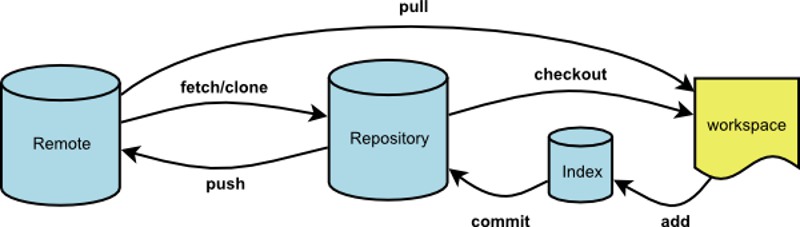
  • Git远程操作详解

    Git是目前最流行的版本管理系统,学会Git几乎成了开发者的必备技能。

    Git有很多优势,其中之一就是远程操作非常简便。本文详细介绍5个Git命令,它们的概念和用法,理解了这些内容,你就会完全掌握Git远程操作。

    git clone
    git remote
    git fetch
    git pull
    git push
    本文针对初级用户,从最简单的讲起,但是需要读者对Git的基本用法有所了解。同时,本文覆盖了上面5个命令的几乎所有的常用用法,所以对于熟练用户也有参考价值。

    70369b664f92cba09bf720bf6f22d160

    一、git clone

    远程操作的第一步,通常是从远程主机克隆一个版本库,这时就要用到git clone命令。

    git clone <版本库的网址>
    比如,克隆jQuery的版本库。
    git clone https://github.com/jquery/jquery.git
    该命令会在本地主机生成一个目录,与远程主机的版本库同名。如果要指定不同的目录名,可以将目录名作为git clone命令的第二个参数。
    git clone <版本库的网址> <本地目录名>
    git clone支持多种协议,除了HTTP(s)以外,还支持SSH、Git、本地文件协议等,下面是一些例子。

    git clone http[s]://example.com/path/to/repo.git/
    git clone ssh://example.com/path/to/repo.git/
    git clone git://example.com/path/to/repo.git/
    git clone /opt/git/project.git
    git clone file:///opt/git/project.git
    git clone ftp[s]://example.com/path/to/repo.git/
    git clone rsync://example.com/path/to/repo.git/
    SSH协议还有另一种写法。

    git clone [user@]example.com:path/to/repo.git/
    通常来说,Git协议下载速度最快,SSH协议用于需要用户认证的场合。各种协议优劣的详细讨论请参考官方文档。

    二、git remote

    为了便于管理,Git要求每个远程主机都必须指定一个主机名。git remote命令就用于管理主机名。

    不带选项的时候,git remote命令列出所有远程主机。

    git remote
    origin
    使用-v选项,可以参看远程主机的网址。

    git remote -v
    origin git@github.com:jquery/jquery.git (fetch)
    origin git@github.com:jquery/jquery.git (push)
    上面命令表示,当前只有一台远程主机,叫做origin,以及它的网址。

    克隆版本库的时候,所使用的远程主机自动被Git命名为origin。如果想用其他的主机名,需要用git clone命令的-o选项指定。

    git clone -o jQuery https://github.com/jquery/jquery.git
    git remote
    jQuery
    上面命令表示,克隆的时候,指定远程主机叫做jQuery。

    git remote show命令加上主机名,可以查看该主机的详细信息。

    git remote show <主机名>
    git remote add命令用于添加远程主机。

    git remote add <主机名> <网址>
    git remote rm命令用于删除远程主机。

    git remote rm <主机名>
    git remote rename命令用于远程主机的改名。

    git remote rename <原主机名> <新主机名>
    三、git fetch

    一旦远程主机的版本库有了更新(Git术语叫做commit),需要将这些更新取回本地,这时就要用到git fetch命令。

    git fetch <远程主机名>
    上面命令将某个远程主机的更新,全部取回本地。

    默认情况下,git fetch取回所有分支(branch)的更新。如果只想取回特定分支的更新,可以指定分支名。

    git fetch <远程主机名> <分支名>
    比如,取回origin主机的master分支。

    git fetch origin master
    所取回的更新,在本地主机上要用”远程主机名/分支名”的形式读取。比如origin主机的master,就要用origin/master读取。

    git branch命令的-r选项,可以用来查看远程分支,-a选项查看所有分支。

    git branch -r
    origin/master

    git branch -a
    * master
    remotes/origin/master
    上面命令表示,本地主机的当前分支是master,远程分支是origin/master。

    取回远程主机的更新以后,可以在它的基础上,使用git checkout命令创建一个新的分支。

    git checkout -b newBrach origin/master
    上面命令表示,在origin/master的基础上,创建一个新分支。

    此外,也可以使用git merge命令或者git rebase命令,在本地分支上合并远程分支。

    git merge origin/master
    # 或者
    git rebase origin/master
    上面命令表示在当前分支上,合并origin/master。

    四、git pull

    git pull命令的作用是,取回远程主机某个分支的更新,再与本地的指定分支合并。它的完整格式稍稍有点复杂。

    git pull <远程主机名> <远程分支名>:<本地分支名>
    比如,取回origin主机的next分支,与本地的master分支合并,需要写成下面这样。

    1
    $ git pull origin next:master
    如果远程分支是与当前分支合并,则冒号后面的部分可以省略。

    git pull origin next
    上面命令表示,取回origin/next分支,再与当前分支合并。实质上,这等同于先做git fetch,再做git merge。

    git fetch origin
    git merge origin/next
    在某些场合,Git会自动在本地分支与远程分支之间,建立一种追踪关系(tracking)。比如,在git clone的时候,所有本地分支默认与远程主机的同名分支,建立追踪关系,也就是说,本地的master分支自动”追踪”origin/master分支。

    Git也允许手动建立追踪关系。

    git branch –set-upstream master origin/next
    上面命令指定master分支追踪origin/next分支。

    如果当前分支与远程分支存在追踪关系,git pull就可以省略远程分支名。
    git pull origin
    上面命令表示,本地的当前分支自动与对应的origin主机”追踪分支”(remote-tracking branch)进行合并。

    如果当前分支只有一个追踪分支,连远程主机名都可以省略。
    git pull
    上面命令表示,当前分支自动与唯一一个追踪分支进行合并。

    如果合并需要采用rebase模式,可以使用–rebase选项。
    git pull –rebase <远程主机名> <远程分支名>:<本地分支名>
    五、git push

    git push命令用于将本地分支的更新,推送到远程主机。它的格式与git pull命令相仿。
    git push <远程主机名> <本地分支名>:<远程分支名>
    注意,分支推送顺序的写法是<来源地>:<目的地>,所以git pull是<远程分支>:<本地分支>,而git push是<本地分支>:<远程分支>。

    如果省略远程分支名,则表示将本地分支推送与之存在”追踪关系”的远程分支(通常两者同名),如果该远程分支不存在,则会被新建。
    git push origin master
    上面命令表示,将本地的master分支推送到origin主机的master分支。如果后者不存在,则会被新建。

    如果省略本地分支名,则表示删除指定的远程分支,因为这等同于推送一个空的本地分支到远程分支。
    git push origin :master
    # 等同于
    git push origin –delete master
    上面命令表示删除origin主机的master分支。

    如果当前分支与远程分支之间存在追踪关系,则本地分支和远程分支都可以省略。
    git push origin
    上面命令表示,将当前分支推送到origin主机的对应分支。

    如果当前分支只有一个追踪分支,那么主机名都可以省略。
    git push
    如果当前分支与多个主机存在追踪关系,则可以使用-u选项指定一个默认主机,这样后面就可以不加任何参数使用git push。
    git push -u origin master
    上面命令将本地的master分支推送到origin主机,同时指定origin为默认主机,后面就可以不加任何参数使用git push了。

    不带任何参数的git push,默认只推送当前分支,这叫做simple方式。此外,还有一种matching方式,会推送所有有对应的远程分支的本地分支。Git 2.0版本之前,默认采用matching方法,现在改为默认采用simple方式。如果要修改这个设置,可以采用git config命令。
    git config –global push.default matching
    # 或者
    git config –global push.default simple
    还有一种情况,就是不管是否存在对应的远程分支,将本地的所有分支都推送到远程主机,这时需要使用–all选项。

    git push –all origin
    上面命令表示,将所有本地分支都推送到origin主机。

    如果远程主机的版本比本地版本更新,推送时Git会报错,要求先在本地做git pull合并差异,然后再推送到远程主机。这时,如果你一定要推送,可以使用–force选项。

    git push –force origin
    上面命令使用–force选项,结果导致在远程主机产生一个”非直进式”的合并(non-fast-forward merge)。除非你很确定要这样做,否则应该尽量避免使用–force选项。

    最后,git push不会推送标签(tag),除非使用–tags选项。

    git push origin –tags

  • make: g++: Command not found

    make: g++: Command not found
    g++ make: g++: Command not found

    sudo apt-get install build-essential

  • lftp Fatal error: Certificate verification: Not trusted – Junk Food for the Brain

    If you use lftp alot, occasionally you will encounter sites that just use ssl to secure transmission, but don’t actually purchase a proper SSL cert for the domain.

    You would get the following error message:

    Fatal error: Certificate verification: Not trusted

    If you are sure its really the intended site (No Man in the Middle Attacks!), you can temporaryly disable certificate verification by the following command at the lftp prompt:

    lftp > set ssl:verify-certificate no

    To permanently set this for lftp, you could add this to your /etc/lftp.conf or in your home directory ~/.lfptrc file.

  • dpkg: error processing mysql-server-5.5 (–configure)

    rm -rf /var/lib/mysql /etc/mysql ~/.mysql
    apt-get –yes autoremove –purge mysql-server-5.5
    apt-get –yes autoremove –purge mysql-client-5.5
    apt-get –yes autoremove –purge mysql-common

    deluser mysql
    apt-get autoclean
    apt-get update && apt-get upgrade
    apt-get install mysql-server-5.5 mysql-client-5.5

    NOTE: when you get ‘dpkg: error…’ please run step below:
    $ dpkg –configure -a

    Setting up mysql-server-5.5 (5.5.41-0ubuntu0.14.04.1) ...
    /var/lib/dpkg/info/mysql-server-5.5.postinst: line 146: logger: command not found
    ATTENTION: An error has occured. More info is in the syslog!
    /var/lib/dpkg/info/mysql-server-5.5.postinst: line 236: logger: command not found

    dpkg: error processing package mysql-server-5.5 (–configure):
    subprocess installed post-installation script returned error exit status 127
    after installing bsdutils,

    apt-get install bsdutils
    mysql installation passed normally

  • kb2862335 更新失败

    今天遇到kb2862335更新失败,网上很多教程都误倒人,修改文件什么的,
    直接官方下载安装即可:
    kb2862335 64位 http://www.microsoft.com/zh-tw/download/details.aspx?id=40587
    kb2862335 x86 http://www.microsoft.com/zh-cn/download/details.aspx?id=40409

  • Android手机装上Linux系统

    昨天发现手机安装linux脚本已经自动化了,直接下载一个应用即可全自动安装,就在闲置的手机上安装了下;像:

    Linux Installer https://play.google.com/store/apps/details?id=com.zpwebsites.linuxonandroid

    手机都需要root。尝试了下Linux Installer,教程比较详细

    http://android.galoula.com/en/LinuxInstall/

    需要注意一个地方是,最后install linuxchroot script时,注意设置linuxinstaller的系统可写权限,不然安装无响应或者提示写权限出错。

    我装的是Debian Linux的arm发行版,apt-get用起来很方便。

  • chattr: command not found

    Solution: Install e2fsprogs:

    apt-get install e2fsprogs

  • debian7 wheezy install mysql-server-5.5 error

    dpkg: error processing mysql-server (–configure):

    dependency problems – leaving unconfigured

    Processing triggers for libapache2-mod-php5 …

    [ ok ] Reloading web server config: apache2.

    Errors were encountered while processing:

    mysql-server-5.5

    mysql-server

    E: Sub-process /usr/bin/dpkg returned an error code (1)


    # wget http://dev.mysql.com/get/mysql-apt-config_0.2.1-1debian7_all.deb

    # dpkg -i mysql-apt-config_0.2.1-1debian7_all.deb //安装时选1,使用5.6版本。

    # apt-get update

    # apt-get install mysql-server