博客

  • Apache/MySQL/PHP/phpMyAdmin on FreeBSD

    1. Introduction:

    This article describes how to setup Apache, MySQL, PHP and phpMyAdmin on a server running FreeBSD. The article was written for the software versions below but is likely to work on newer versions without too much difficulty.

     2. Software:

    Operating System:        FreeBSD 7.0 for i386      Download

    Apache:                           2.2.8                                Installed from Ports Collection

    MySQL Server:            5.0.51a                             Installed from Ports Collection

    PHP & Extensions:        5.2.5                                Installed from Ports Collection

    phpMyAdmin:              2.11.5                               Installed from Ports Collection

    3. Before you begin:

    This article assumes you have a working install of FreeBSD 6.2 for i386 logged in as root (or another user in the wheel group and you have used “su”) with the ports collection installed. You can use sysinstall, cvsup or portsnap to install the ports distribution if you have not already done so. See point 2 below.

    Update your ports collection (portsnap fetch, portsnap extract.) (See the FreeBSD Handbook Section 4.5.1)

    4. Installing MySQL:

    (1)  Go to the mysql50-server port directory by typing the command:

                     cd /usr/ports/databases/mysql50-server

     (2) Build the port by typing: (This takes AGES – good time for some food.)

    make BUILD_OPTIMIZED=yes BUILD_STATIC=yes

    (3) Install by typing:

                 make install clean

    (4)Open /etc/rc.conf with your favourite text editor and add the line shown below. This will ensure mysql is enabled and starts on boot.

                    mysql_enable=”YES”

     (5)Start mysql manually to avoid having to reboot now by typing:

             /usr/local/etc/rc.d/mysql-server start

     (6)Set a password for the MySQL root user by executing the command, subtituting your own password in place of new-password:

        /usr/local/bin/mysqladmin -uroot password ‘new-password’

      And you’re done! MySQL is installed.

    5.Installing Apache

    (1)Go to the apache22 port directory by typing the command:

    cd /usr/ports/www/apache22

    (2)Build and install the port by typing: (This takes a while, coffee time!)

    make install clean

    Note: You may want to disable the two DAV options if you don’t need them when prompted

    (3)Open /etc/rc.conf with your favourite text editor and add the line shown below. This will ensure apache is enabled and starts on boot.

    apache22_enable=”YES”

    6.Installing PHP

    (1)Go to the php5 port directory by typing the command:

    cd /usr/ports/lang/php5

    (2)Build and install the port by typing: (Just accept the default options, this takes a while, more coffee.)

    make install clean

    Make sure the APACHE (Build Apache module) option is ticked when configuring the build, leaving all other options as default, before selecting OK.

    (3)Go to the php5-extentions meta port directory by typing the command:

    cd /usr/ports/lang/php5-extentions

    (4)Build and install the port by typing: (Just accept the defaults here, phpMyAdmin will install any other extensions required itself)

    make install clean

    (5)Install the php.ini file:

    cp /usr/local/etc/php.ini-dist /usr/local/etc/php.ini

    版本不同,只面的文件可能有所改变

    php.ini-production对应于php.ini-recommended

    php.ini-development对应于php.ini-dist

    php.ini-development 开发用的,php.ini-produciton 生产机用的,如果做站的话,我觉得应该将php.ini-produciton改为php.ini,用php.ini-produciton可能会出现无法支持PHP,修改php.ini中的短标签开关short_open_tag=Off在作怪,改成On就行了

    (6)Edit your Apache configuration file (/usr/local/etc/apache22/httpd.conf) and add the following lines to the end of the file:

    AddType application/x-httpd-php .php

    AddType application/x-httpd-php-source .phps

     Note: You can add additional extenions other than .php (eg .phtml) seperated by spaces.

    Note: The second line is optional, it will show colour highlighted PHP source for .phps files.

    (7)You should also search for the line that reads:

    DirectoryIndex index.html

    and change it to read:

    DirectoryIndex index.php index.html

    Note: You may also add index.phtml or any other default page if you added additional extentions in the previous step.

    (8)Enable language settings by searching for the line:

    #Include etc/apache22/extra/httpd-languages.conf

    and removing the # comment mark so it reads:

    Include etc/apache22/extra/httpd-languages.conf

    (9)Edit the language settings file (/usr/local/etc/apache22/extra/httpd-languages.conf) and add the following line at the end of the file:

    AddDefaultCharset On

    (10)Start Apache using the startup script:

    /usr/local/etc/rc.d/apache22 start

    And you’re done! Apache with PHP is installed.

    安装Zend Optimizer

    cd /usr/ports/devel/ZendOptimizer/

    make install clean

    ===> ZendOptimizer-3.3.0.a cannot install: doesn’t work with PHP version : 5 (Doesn’t support PHP 5).

    *** Error code 1

    Stop in /usr/ports/devel/ZendOptimizer.

    注:如果你用的是FreeBsd8.0版本的可能会出现上面的情况,这里可以使用使用pkg_add命令来安装Zend Optimizer.

    #pkg_add -r ZendOptimizer

    #rehash

    执行结果将类似如下:

    Fetching ftp://ftp.freebsd.org/pub/FreeBSD/ports/i386/packages-8.0-release/Latest/ZendOptimizer.tbz… Done.

    pkg_add: warning: package ‘ZendOptimizer-3.3.0.a’ requires ‘libxml2-2.7.5’, but ‘libxml2-2.7.7’ is installed

    pkg_add: warning: package ‘ZendOptimizer-3.3.0.a’ requires ‘php5-5.2.11’, but ‘php5-5.3.2’ is installed


    ********************************************************************************


    You have installed the ZendOptimizer package.


    Edit /usr/local/etc/php.ini and add:


    [Zend]

    zend_optimizer.optimization_level=15

    zend_extension_manager.optimizer=”/usr/local/lib/php/20060613/Optimizer”

    zend_extension_manager.optimizer_ts=”/usr/local/lib/php/20060613/Optimizer_TS”

    zend_extension=”/usr/local/lib/php/20060613/ZendExtensionManager.so”

    zend_extension_ts=”/usr/local/lib/php/20060613/ZendExtensionManager_TS.so”


    NOTE: PHP should be compiled in non-debug mode (default).


    ********************************************************************************

    虽然居然成功了,但也可能用phpinfo时候还是不行的![可惜最后还是不行,得到的教训是,不要用太新的版本,这样资料和环境的支持会很不完善。]


    7.Installing phpMyAdmin

    (1)Got to the phpmyadmin port directory by typing the command:

    cd /usr/ports/databases/phpmyadmin

    (2)Build and install the port by typing: (Just accept the default options)

    make install clean

    (3)phpMyAdmin is now installed in /usr/local/www/phpMyAdmin. To use it we need to create Alias and Directory entries in /usr/local/etc/apache22/httpd.conf. To do this, add the following lines to the <IfModule alias_module> section (just search for where all the other Alias commands are.)

    Alias /phpmyadmin /usr/local/www/phpMyAdmin

    (4)As /usr/local/www/phpMyadmin is outside of the Apache <DocumentRoot> you will have to make a <Directory> entry for it too. Add the following lines to the end of the <Directory> section: (just search for </Directory>)

    <Directory “/usr/local/www/phpMyAdmin”>

    Order allow,deny

    Allow from all

    </Directory>

     Note:You may prefer to put the Alias entry inside a <VirtualHost> entry if you are hosting multiple sites using name based virtual hosting and do not wish to enable phpMyAdmin on all the sites.

    (5)Create a config directory for phpMyAdmin and make it globally read/write/executable by typing the commands:

    cd /usr/local/www/phpMyAdmin

    mkdir config

    chmod 777 config

    (6)Restart Apache so that the Alias and Directory entries take effect by typing:

    /usr/local/etc/rc.d/apache22 restart

    (7)Configure phpMyAdmin by going to http://hostname/phpmyadmin/scripts/setup.php in your browser and set at least the following:

    • Add Server
      • Change the “Authentication type” dropdown to http to have phpMyAdmin prompt you for a username and password.
      • Delete root from the “User for config” auth textbox so it is blank.
      • You can leave all other settings as they are (even if they are blank.)
      • Click the “Add” button to add the new server

    Save the configuration using the Save button in the Configuration section.

    (8)For the changes to take effect you must copy the generated config file from the phpMyAdmin/config directory to the phpMyAdmin directory by typing the following command: (Note the space dot at the end of the command)

    cp config/config.inc.php .

    (9)You can now delete the config directory you created earlier and reset the permissions on the config.inc.php file to read only typing the commands:

    rm -rf config

    chmod 444 config.inc.php

    (10)That’s it! You can place your web site in /usr/local/www/data/ and access phpMyAdmin at http://hostname/phpmyadmin/ in your web browser and logging in using username root and the MySQL password you set earlier.

    以上安装完,可能有所出入,特别是Apache22可能无法启动,以下两点是一些总结:

    1:注意:apache22有个bug,不能启动FreeBSD自带的一个基于http端口过滤的模块。这个模块的作用很不错——检查HTTP请求是否完整,符合规则accpt一个Http进程,否则就扔掉。你会遇到如下提示

    [Sat Jan 23 22:47:29 2010] [warn] (2)No such file or directory: Failed to enable the ‘httpready’ Accept Filter    解决方法是:

    #kldload accf_http  或者将/boot/defaults/loader.conf==> accf_httpd_load=”YES”

    2.apache22无法启动时,进入/var/logo查看httpd_error.log, 如果出现以下提示:

    [alert] (EAI 8)hostname nor servname provided, or not known: mod_unique_id: unable to find IPv4 address of “shao  Configuration Failed

    解决方法:进入/usr/local/etc/apache22    ee ./httpd.conf

    将LoadModule unique_id_module libexec/apache2/mod_unique_id.so注释掉

    然后启动/usr/local/etc/rc.d/apache22  start即可.

    一个IP多个域名添加方法

    在httpd.conf中去掉httpd-vhosts.conf那一栏注释,然后进入/usr/local/etc/apache22/extra/修改httpd-vhosts.conf网站域名对应的目录,还要加

    <Directory “/usr/home/www/jpeps.com”>

    Options FollowSymLinks

    AllowOverride None

    Order allow,deny

    Allow from all

    </Directory>

    <IfModule dir_module>

    DirectoryIndex index.html index.htm index.php

    </IfModule>

    添加php.ini 被禁用的函数(disable_functions)

    passthru,exec,system,chroot,scandir,chgrp,chown,shell_exec,proc_open,proc_get_status,ini_alter,ini_restore,dl,pfsockopen,openlog,syslog,readlink,symlink,popepassthru,stream_socket_server,fsocket,fsockopen
  • Freebsd9.0安装Nginx+PHP-FPM+MySQL+eAccelerator+Memcached+phpMyAdmin

    更新 ports

    第一种方式: portsnap (自带)

    首先修改/etc/portsnap.conf

    SERVERNAME=portsnap.cn.freebsd.org

    1.下载压缩的 Ports 套件快照到 /var/db/portsnap

    # portsnap fetch

    2.假如是首次运行 Portsnap, 则需要将快照释放到 /usr/ports:

    # portsnap extract

    如果您已经有装好的 /usr/ports 而只想更新, 则应执行下面的命令:

    # portsnap update

    完成后需要退出终端重新登陆。

    复制cvsup更新配置文件

    # cp /usr/share/examples/cvsup/ports-supfile /etc/supfile

    下面是我使用的配置,屏蔽了desktop等一些服务器用不到的软件包,源已经改成中国镜像,速度比国外的主服务器要快很多

    # $FreeBSD: release/9.0.0/share/examples/cvsup/ports-supfile 219858 2011-03-22 04:31:35Z glebius $

    #

    # This file contains all of the “CVSup collections” that make up the

    # FreeBSD-current ports collection.

    #

    # CVSup (CVS Update Protocol) allows you to download the latest CVS

    # tree (or any branch of development therefrom) to your system easily

    # and efficiently (far more so than with sup, which CVSup is aimed

    # at replacing). If you’re running CVSup interactively, and are

    # currently using an X display server, you should run CVSup as follows

    # to keep your CVS tree up-to-date:

    #

    # cvsup ports-supfile

    #

    # If not running X, or invoking cvsup from a non-interactive script, then

    # run it as follows:

    #

    # cvsup -g -L 2 ports-supfile

    #

    # You may wish to change some of the settings in this file to better

    # suit your system:

    #

    # host=CHANGE_THIS.FreeBSD.org

    # This specifies the server host which will supply the

    # file updates. You must change it to one of the CVSup

    # mirror sites listed in the FreeBSD Handbook at

    # http://www.freebsd.org/doc/handbook/cvsup.html#CVSUP-MIRRORS.

    # You can override this setting on the command line

    # with cvsup’s “-h host” option.

    #

    # base=/var/db

    # This specifies the root where CVSup will store information

    # about the collections you have transferred to your system.

    # A setting of “/var/db” will generate this information in

    # /var/db/sup. You can override the “base” setting on the

    # command line with cvsup’s “-b base” option. This directory

    # must exist in order to run CVSup.

    #

    # prefix=/usr

    # This specifies where to place the requested files. A

    # setting of “/usr” will place all of the files requested

    # in “/usr/ports” (e.g., “/usr/ports/devel”, “/usr/ports/lang”).

    # The prefix directory must exist in order to run CVSup.

    # Defaults that apply to all the collections

    #

    # IMPORTANT: Change the next line to use one of the CVSup mirror sites

    # listed at http://www.freebsd.org/doc/handbook/cvsup.html#CVSUP-MIRRORS.

    *default host=cvsup.cn.FreeBSD.org

    *default base=/var/db

    *default prefix=/usr

    *default release=cvs tag=.

    *default delete use-rel-suffix

    # If you seem to be limited by CPU rather than network or disk bandwidth, try

    # commenting out the following line. (Normally, today’s CPUs are fast enough

    # that you want to run compression.)

    *default compress

    ## Ports Collection.

    #

    # The easiest way to get the ports tree is to use the “ports-all”

    # mega-collection. It includes all of the individual “ports-*”

    # collections,

    #ports-all

    # These are the individual collections that make up “ports-all”. If you

    # use these, be sure to comment out “ports-all” above.

    #

    # Be sure to ALWAYS cvsup the ports-base collection if you use any of the

    # other individual collections below. ports-base is a mandatory collection

    # for the ports collection, and your ports may not build correctly if it

    # is not kept up to date.

    ports-base

    #ports-accessibility

    #ports-arabic

    ports-archivers

    #ports-astro

    #ports-audio

    ports-benchmarks

    #ports-biology

    #ports-cad

    #ports-chinese

    #ports-comms

    ports-converters

    ports-databases

    #ports-deskutils

    ports-devel

    ports-dns

    ports-editors

    #ports-emulators

    #ports-finance

    #ports-french

    ports-ftp

    #ports-games

    #ports-german

    #ports-graphics

    #ports-hebrew

    #ports-hungarian

    #ports-irc

    #ports-japanese

    #ports-java

    #ports-korean

    ports-lang

    ports-mail

    ports-math

    ports-misc

    #ports-multimedia

    ports-net

    #ports-net-im

    #ports-net-mgmt

    #ports-net-p2p

    #ports-news

    #ports-palm

    #ports-polish

    #ports-ports-mgmt

    #ports-portuguese

    #ports-print

    #ports-russian

    #ports-science

    ports-security

    ports-shells

    ports-sysutils

    ports-textproc

    #ports-ukrainian

    #ports-vietnamese

    ports-www

    #ports-x11

    #ports-x11-clocks

    #ports-x11-drivers

    #ports-x11-fm

    #ports-x11-fonts

    #ports-x11-servers

    #ports-x11-themes

    #ports-x11-toolkits

    #ports-x11-wm

    然后 更新 Ports到最新

    # cvsup -L 2 -g /etc/supfile

    安装 screen(这个是很有必要,除非你在本地)

    除非你确信在最长可达半天的编译时间里不会因为任何因素掉线,否则尽可能用屏幕保持软件,如果编译一大半突然断线,那就很麻烦了

    # cd /usr/ports/sysutils/screen/

    # make install clean

    options 里直接点 OK 就可以了。编译安装完成后,打入 screen 进入 screen 环境,会有一个提示信息,直接点击回车就好,然后正常进行编译过程。如果断线,可以在重新连上 SSH 后通过下面的命令回到前面的工作中。

    screen -r

    安装 MySQL

    Ports 里提供了很多版本的 MySQL,这里我选择了 5.5

    # cd /usr/ports/databases/mysql55-server

    # make WITH_CHARSET=gbk WITH_XCHARSET=all BUILD_OPTIMIZED=yes BUILD_STATIC=yes install clean

    即可,慢慢等吧,要花一些时间的。

    如果提示 Error when bootstrapping CMake: Cannot find appropriate Makefile processor on this system. Please specify one using environment variable MAKE.

    安装下cmake即可:

    pkg_add cmake -v -r

    安装完成后,在 /usr/local/share/mysql/ 里有很多预先设置好的 MySQL 配置文件,可以根据自己的需要选择这些预先设置好的文件,或者根据自己的需要,写配置文件。

    # cp /usr/local/share/mysql/my-medium.cnf /usr/local/etc/my.cnf

    # rehash

    # echo mysql_enable=”YES” >> /etc/rc.conf

    # /usr/local/etc/rc.d/mysql-server start

    FreeBSD 下安装 MySQL 后,脚本会自动为其建立用户、用户组 mysql。可以根据自己需要,设置安全策略。

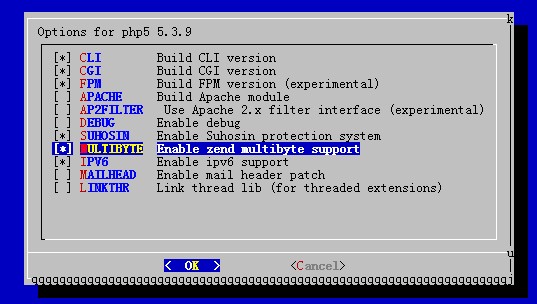
    安装 PHP 版本 5.3 .10

    # cd /usr/ports/lang/php5/

    # make config

    这里我根据自己需要,选择了(图片截取自5.3.9)

    # make install clean

    之后安装 PHP5 的扩展库

    # cd /usr/ports/lang/php5-extensions

    # make config

    在对话框中,选择需要的(编译扩展是最耗时间的,至少2-3小时以上,根据需要能少选就少选!以后可以单个安装)

    [X] BCMATH bc style precision math functions

    [X] BZ2 bzip2 library support

    [ ] CALENDAR calendar conversion support

    [X] CTYPE ctype functions

    [X] CURL CURL support

    [ ] DBA dba support

    [ ] DBASE dBase library support

    [X] DOM DOM support

    [ ] EXIF EXIF support

    [ ] FILEINFO fileinfo support

    [X] FILTER input filter support

    [ ] FRIBIDI FriBidi support

    [X] FTP FTP support

    [X] GD GD library support

    [ ] GETTEXT gettext library support

    [ ] GMP GNU MP support

    [X] HASH HASH Message Digest Framework

    [X] ICONV iconv support

    [ ] IMAP IMAP support

    [ ] INTERBASE Interbase 6 database support (Firebird)

    [X] JSON JavaScript Object Serialization support

    [ ] LDAP OpenLDAP support

    [ ] MBSTRING multibyte string support

    [X] MCRYPT Encryption support

    [X] MHASH Crypto-hashing support

    [ ] MING ming shockwave flash support

    [ ] MSSQL MS-SQL database support

    [X] MYSQL MySQL database support

    [ ] MYSQLI MySQLi database support

    [ ] NCURSES ncurses support (CLI only)

    [ ] ODBC unixODBC support

    [X] OPENSSL OpenSSL support

    [ ] PCNTL pcntl support (CLI only)

    [X] PCRE Perl Compatible Regular Expression support

    [ ] PDF PDFlib support (implies GD)

    [X] PDO PHP Data Objects Interface (PDO)

    [X] PDO_SQLITE PDO sqlite driver

    [X] PDO_MYSQL PDO mysql driver

    [ ] PGSQL PostgreSQL database support

    [X] POSIX POSIX-like functions

    [ ] PSPELL pspell support

    [ ] READLINE readline support (CLI only)

    [ ] RECODE recode support

    [X] SESSION session support

    [ ] SHMOP shmop support

    [X] SIMPLEXML simplexml support

    [ ] SNMP SNMP support

    [X] SOAP SOAP support

    [X] SOCKETS sockets support

    [X] SPL Standard PHP Library

    [X] SQLITE sqlite support

    [ ] SYBASE_CT Sybase database support

    [ ] SYSVMSG System V message support

    [ ] SYSVSEM System V semaphore support

    [ ] SYSVSHM System V shared memory support

    [ ] TIDY TIDY support

    [X] TOKENIZER tokenizer support

    [ ] WDDX WDDX support (implies XML)

    [X] XML XML support

    [X] XMLREADER XMLReader support

    [ ] XMLRPC XMLRPC-EPI support

    [X] XMLWRITER XMLWriter support

    [ ] XSL XSL support (Implies DOM)

    [ ] YAZ YAZ support (ANSI/NISO Z39.50)

    [X] ZIP ZIP support

    [X] ZLIB ZLIB support

    选择完成后,继续

    # make install clean

    经过漫长的等待(估计得一个多小时呢),终于完成了编译。启用 PHP-FPM

    # echo php_fpm_enable=”YES” >> /etc/rc.conf

    # /usr/local/etc/rc.d/php-fpm start

    PHP-FPM 的配置文件,在 FreeBSD 下位于 /usr/local/etc/php-fpm.conf,可以自行更改

    安装 nginx

    nginx 的编译所用的时间相对于前两个东西而言,就快非常多了

    # cd /usr/ports/www/nginx

    # make install clean

    编译选项

    [ ] DEBUG Enable nginx debugging

    [ ] DEBUGLOG Enable debug log (–with-debug)

    [ ] FILE_AIO Enable file aio

    [X] IPV6 Enable IPv6

    [ ] GOOGLE_PERFTOOLS Enable google perftools module

    [X] HTTP_MODULE Enable HTTP module

    [ ] HTTP_ADDITION_MODULE Enable http_addition module

    [X] HTTP_CACHE_MODULE Enable http_cache module

    [ ] HTTP_DAV_MODULE Enable http_webdav module

    [ ] HTTP_FLV_MODULE Enable http_flv module

    [ ] HTTP_GEOIP_MODULE Enable http_geoip module

    [X] HTTP_GZIP_STATIC_MODULE Enable http_gzip_static module

    [ ] HTTP_IMAGE_FILTER_MODULE Enable http_image_filter module

    [ ] HTTP_PERL_MODULE Enable http_perl module

    [ ] HTTP_RANDOM_INDEX_MODULE Enable http_random_index module

    [ ] HTTP_REALIP_MODULE Enable http_realip module

    [X] HTTP_REWRITE_MODULE Enable http_rewrite module

    [ ] HTTP_SECURE_LINK_MODULE Enable http_secure_link module

    [X] HTTP_SSL_MODULE Enable http_ssl module

    [X] HTTP_STATUS_MODULE Enable http_stub_status module

    [ ] HTTP_SUB_MODULE Enable http_sub module

    [ ] HTTP_XSLT_MODULE Enable http_xslt module

    [ ] MAIL_MODULE Enable IMAP4/POP3/SMTP proxy modul

    [ ] MAIL_IMAP_MODULE Enable IMAP4 proxy module

    [ ] MAIL_POP3_MODULE Enable POP3 proxy module

    [ ] MAIL_SMTP_MODULE Enable SMTP proxy module

    [ ] MAIL_SSL_MODULE Enable mail_ssl module

    [X] WWW Enable html sample files

    [ ] CACHE_PURGE_MODULE 3rd party cache_purge module

    [ ] ECHO_MODULE 3rd party echo module

    [ ] HEADERS_MORE_MODULE 3rd party headers_more module

    [ ] HTTP_ACCEPT_LANGUAGE 3rd party accept_language module

    [ ] HTTP_ACCESSKEY_MODULE 3rd party http_accesskey module

    [ ] HTTP_AUTH_PAM_MODULE 3rd party http_auth_pam module

    [ ] HTTP_AUTH_REQ_MODULE 3rd party http_auth_request module

    [ ] HTTP_EVAL_MODULE 3rd party eval module

    [ ] HTTP_FANCYINDEX_MODULE 3rd party http_fancyindex module

    [ ] HTTP_GUNZIP_FILTER 3rd party http_gunzip_filter modul

    [ ] HTTP_MOGILEFS_MODULE 3rd party mogilefs module

    [ ] HTTP_MP4_H264_MODULE 3rd party mp4/h264 module

    [ ] HTTP_NOTICE_MODULE 3rd party notice module

    [ ] HTTP_PUSH_MODULE 3rd party push module

    [ ] HTTP_REDIS_MODULE 3rd party http_redis module

    [ ] HTTP_RESPONSE_MODULE 3rd party http_response module

    [ ] HTTP_UPLOAD_MODULE 3rd party upload module

    [ ] HTTP_UPLOAD_PROGRESS 3rd party uploadprogress module

    [ ] HTTP_UPSTREAM_FAIR 3rd party upstream fair module

    [ ] HTTP_UPSTREAM_HASH 3rd party upstream hash module

    [ ] HTTP_UPSTREAM_KEEPALIVE 3rd party upstream keepalive modul

    [ ] HTTP_ZIP_MODULE 3rd party http_zip module

    [ ] MEMC_MODULE 3rd party memc (memcached) module

    [ ] PASSENGER_MODULE 3rd party passenger module

    [ ] SLOWFS_CACHE_MODULE 3rd party slowfs_cache module

    [ ] SUPERVISORD_MODULE 3rd party supervisord module

    [ ] SYSLOG_SUPPORT 3rd party syslog support

    [ ] UDPLOG_MODULE 3rd party udplog (syslog) module

    编译完成后,启动 nginx

    # echo nginx_enable=”YES” >> /etc/rc.conf

    这里先不急着 start nginx,因为现在还没有对 PHP 的支持。

    # vi /usr/local/etc/nginx/nginx.conf

    将如下段落前的 “#” 删除,并且将 html 更改为 /usr/local/www/nginx

    location ~ \.php$ {

    root /usr/local/www/nginx;

    fastcgi_pass 127.0.0.1:9000;

    fastcgi_index index.php;

    fastcgi_param SCRIPT_FILENAME /scripts$fastcgi_script_name;

    include fastcgi_params;

    }

    结束后,编辑 /usr/local/etc/nginx/fastcgi_params,加入

    fastcgi_param SCRIPT_FILENAME $document_root$fastcgi_script_name;

    启动 nginx,看看是否已经对 PHP 了

    # /usr/local/etc/rc.d/nginx start

    # echo “<?php phpinfo() ?>” > /usr/local/www/nginx/info.php

    访问 http://yourdomain/info.php,看到 phpinfo 的页面则证明无误。

    安装 eAcceletrator

    eAcceletrator 可以预编译你的 PHP,这样执行的时候,就会起到加速作用。(下图红色地址部分需要根据自己编译结束后给出的地址修改)

    # cd /usr/ports/www/eaccelerator

    # make install clean

    # echo zend_extension=”/usr/local/lib/php/20060613/eaccelerator.so” >> /usr/local/etc/php.ini

    # mkdir /tmp/eaccelerator

    # chown www /tmp/eaccelerator

    # chmod 0700 /tmp/eaccelerator

    # /usr/local/etc/rc.d/php-fpm restart

    再刷新刚才的 info.php,看看是不是加入了 eAcceletrator 的支持

    安装memcached

    cd /usr/ports/databases/memcached

    make install clean

    cd /usr/ports/databases/pecl-memcache

    make install clean

    echo “memcached_enable=YES” >> /etc/rc.conf

    开启 /usr/local/etc/rc.d/memcached start

    下面附上安装过程中会下载的软件(只供大致参考,一般都需要自己下载,可以配置163的镜像源)

    /usr/ports/distfiles/xcb-proto-1.6.tar.bz2

    /usr/ports/distfiles/varnish-3.0.2.tar.gz

    /usr/ports/distfiles/unzip60.tar.gz

    /usr/ports/distfiles/tcl8.5.11-src.tar.gz

    /usr/ports/distfiles/t1lib-5.1.2.tar.gz

    /usr/ports/distfiles/suhosin-patch-5.3.9-0.9.10.patch.gz

    /usr/ports/distfiles/sqlite-src-3071000.zip

    /usr/ports/distfiles/screen-4.0.3.tar.gz

    /usr/ports/distfiles/repcached-2.3.1-1.4.10.patch.gz

    /usr/ports/distfiles/redis-2.4.4.tar.gz

    /usr/ports/distfiles/php-5.3.9.tar.bz2

    /usr/ports/distfiles/pcre-8.21.tar.bz2

    /usr/ports/distfiles/pcre-8.20.tar.bz2

    /usr/ports/distfiles/openldap-2.4.26.tgz

    /usr/ports/distfiles/nss-3.13.1.with.ckbi.1.88.tar.gz

    /usr/ports/distfiles/nload-0.7.3.tar.gz

    /usr/ports/distfiles/Nginx_upstream_hash-0.3.1.tar.gz

    /usr/ports/distfiles/nginx_upstream_fair-20090923.tar.gz

    /usr/ports/distfiles/nginx-1.0.11.tar.gz

    /usr/ports/distfiles/mysql-5.5.20.tar.gz

    /usr/ports/distfiles/memcached-1.4.10.tar.gz

    /usr/ports/distfiles/make-3.82.tar.bz2

    /usr/ports/distfiles/m4-1.4.16.tar.bz2

    /usr/ports/distfiles/libxcb-1.7.tar.bz2

    /usr/ports/distfiles/libtool-2.4.tar.gz

    /usr/ports/distfiles/libpthread-stubs-0.3.tar.bz2

    /usr/ports/distfiles/libpng-1.4.8.tar.xz

    /usr/ports/distfiles/libpng-1.4.8-apng.patch.gz

    /usr/ports/distfiles/libmcrypt-2.5.8.tar.gz

    /usr/ports/distfiles/libiconv-1.13.1.tar.gz

    /usr/ports/distfiles/libgpg-error-1.10.tar.bz2

    /usr/ports/distfiles/libgcrypt-1.5.0.tar.bz2

    /usr/ports/distfiles/libexecinfo-1.1.tar.bz2

    /usr/ports/distfiles/libevent-1.4.14b-stable.tar.gz

    /usr/ports/distfiles/IO-Tty-1.10.tar.gz

    /usr/ports/distfiles/help2man-1.40.5.tar.gz

    /usr/ports/distfiles/haproxy-1.4.16.tar.gz

    /usr/ports/distfiles/gettext-1.05.tar.gz

    /usr/ports/distfiles/gettext-0.18.1.1.tar.gz

    /usr/ports/distfiles/freetype-2.4.7.tar.bz2

    /usr/ports/distfiles/eaccelerator-0.9.6.1.tar.bz2

    /usr/ports/distfiles/cyrus-sasl-2.1.25.tar.gz

    /usr/ports/distfiles/curl-7.21.3.tar.bz2

    /usr/ports/distfiles/cmake-2.8.7.tar.gz

    /usr/ports/distfiles/check-0.9.8.tar.gz

    /usr/ports/distfiles/automake-1.11.1.tar.bz2

    /usr/ports/distfiles/autoconf-2.68.tar.bz2

    /usr/ports/distfiles/agentzh-headers-more-nginx-module-v0.16-0-gde77fd2.tar.gz

    /usr/ports/distfiles/xorg

    /usr/ports/distfiles/ruby

    /usr/ports/distfiles/python

    /usr/ports/distfiles/PECL

    /usr/ports/distfiles/jpeg8b2

    /usr/ports/distfiles/gnome2

    最后说一下安装phpMyAdmin

    cd /usr/ports/databases/phpmyadmin

    make install clean

    Alias /phpmyadmin /usr/local/www/phpMyAdmin

    修改nginx.conf文件

    vi /usr/local/etc/nginx/nginx.conf

    在主域名下面插入

    location /phpmyadmin/ {

    alias /usr/local/www/nginx/phpMyAdmin/;

    index index.php index.html index.htm;

    }

    Location ~ ^/phpmyadmin/(.*\.php)$ {

    root /usr/local/www/nginx/phpMyAdmin/;

    fastcgi_pass unix:/tmp/php-fpm.sock;

    include fastcgi_params;

    fastcgi_param SCRIPT_FILENAME /usr/local/www/nginx/phpMyAdmin/$1;

    fastcgi_param DOCUMENT_ROOT /usr/local/www/nginx/phpMyAdmin;

    }

    然后

    cd /usr/local/www/phpMyAdmin

    mkdir config

    chmod 777 config

    phpMyAdmin by going to http://hostname/phpmyadmin/setup/index.php in your browser and set at least the following:

    做好了一些基本的设置后

    cp config/config.inc.php .

    rm -rf config

    chmod 444 config.inc.php

    这样就可以访问phpMyAdmin了

    以上参考的网站

    Apache/MySQL/PHP/phpMyAdmin on FreeBSD

  • 道听途说(一)

    再烦,也别忘微笑;再急,也要注意语气;

    再苦,也别忘坚持;再累,也要爱自己。

    低调做人,你会一次比一次稳健;高调做事,你会一次比一次优秀。

    成功的时候不要忘记过去;失败的时候不要忘记还有未来。

    有望得到的要努力,无望得到的不介意,则无论输赢姿态都会好看。

    生活不是单行线,一条路走不通,你可以转弯。

    泪水和汗水的化学成分相似,但前者只能为你换来同情,后者却可以为你赢的成功。

    变老是人生的必修课,变成熟是选修课。

    以锻炼为本,学会健康;以修进为本,学会求知;

    以进德为本,学会做人;以适应为本,学会生存。

    人生四项基本原则:懂得选择,学会放弃,耐得住寂寞,经得起诱惑。

    当所有人都低调的时候,你可以高调,但不能跑调。

    学会忘记是生活的技术,学会微笑是生活的艺术。

    什么是好工作:一不影响生活作息,二不影响家庭团聚,三能养家糊口。

    懒惰像生锈一样,比操劳更消耗身体。

    让梦想成真的最好办法就是醒来。

    哲人无忧,智者常乐。并不是因为所爱的一切他都拥有了,而是所拥有的一切他都爱。

    曾几何时,我们都会随着时光的消逝而渐渐老去。但无论何时都应该保持一颗健康快乐的心

  • FreeBSD安装后配置

    安装及更新ports树

    ports如何使用,我们以后再讲,先不要着急使用portsnap。先完成以下步骤,你会发现,ports会更快,安装软件也会更快。

    #cd /etc

    #vi portsnap.conf

    找到portsnap.FreeBSD.org

    将其改为portsnap3.hshh.org

    保存退出

    我是网通用户,所以用3号镜像。镜像列表如下

    portsnap.hshh.org(电信)

    portsnap2.hshh.org(电信)

    portsnap3.hshh.org(网通)

    portsnap4.hshh.org(电信)

    这是国内的portsnap镜像,更新速度会更快。我见过无数linux装好后就再也不更新,导致漏洞一大堆,并不完全是系统管理员的问题,这跟yum或者apt的包维护也有关系。FreeBSD完全不用担心这一点,只要你自动设定portsnap,自动upgrade,即便你放在那里一年,你的软件也会是最新的。不过一般不建议这样做。后面会讲到。

    然后,执行下述命令:portsnap fetch extract

    更新你的ports树吧,国内的镜像速度飞快。大约会下载63-64M的port包。然后等待解压缩完成即可。现在,你的ports树就是最新的了,尽管去编译安装软件吧。需要更新,可以运行下述命令

    portsnap fetch update

    portsnap采用增量更新的方式,第一次需要执行fetch extract,以后只需要执行fetch update即可,增量更新的更新量很小,速度飞快。

    更新FreeBSD系统文件

    没有人能保证操作系统完美无缺,即便是发行版也不能,但在发现补丁后及时打上,是最明智的做法。这一点上FreeBSD也做得相当人性。那么,更新系统文件之前,我们也需要改一个配置文件,会让你变得更快。

    cd /etc

    #vi freebsd-update.conf

    找到ServerName update.FreeBSD.org

    将update.freebsd.org

    改为freebsd-updates.mirrors.163.com

    保存退出

    然后就可以了,运行下面的命令更新吧,更新之前可以看一下uname -a,以8.2为例,会显示FreeBSD 8.2-RELEASE

    #freebsd-update fetch

    #freebsd-update install

    更新完成后重启,再打uname -a,会显示FreeBSD 8.2-RELEASE-p4,显示系统补丁已经打上了。

    这些命令,你都可以加入到crontab中定期自动运行

    软件安装源配置

    编辑一个文件,这个文件在新装的freebsd系统中是不存在的,除非你用ports安装过软件,否则不会生成这个文件。所以,在新装系统中需要手动创建这个文件。

    vi /etc/make.conf

    然后输入以下内容

    MASTER_SITE_BACKUP?=http://mirrors.163.com/FreeBSD/distfiles/${DIST_SUBDIR}/

    MASTER_SITE_OVERRIDE?=${MASTER_SITE_BACKUP}

    保存退出,这样你在用ports安装的时候,就会直接连接到163的镜像,速度会更快。不过有一个缺点,就是最新的软件发行包通常不会及时更新,大概需要3-4天或者更长的时间,163镜像才会与freebsd同步过来,不过,however,有国内镜像总比没有强

    一般不推荐用pkg_add方式直接安装二进制文件,这样不够优化,最好是通过ports树进行编译安装。除非有特殊的要求,所以我先不写PACKAGESITE变量的设置。

    软件安装

    这是我最欣赏freebsd的优点之一,软件收集全面,分类明确,安装简便,编译安装方式足够适应系统并优化。配置文件集中管理,绝对节省人类的时间,比起LINUX到处找编译文件要强太多了。

    举例,比如我要需要安装nginx,我在这里假设你已经更新过ports树了,在我写这个文章的时候,最新的frebbsd nginx版本为1.0.8,1。

    运行下列命令进行安装

    #cd /usr/ports/www/nginx

    #make install clean

    会弹出选项,按照需求进行选择,然后OK,等待编译完成吧,这个软件就装完了。安装过程中会自动检测依赖关系,并自动下载依赖软件编译。这比糟糕透顶yum强不知多少倍,且不论yum是安装二进制文件,而且经常找不到依赖包,装完之后你还需要find配置文件,浪费时间!freebsd的配置文件全部集中管理。无论你通过ports安装什么软件,如果他存在配置文件,请到下面这个路径里找

    #cd /usr/local/etc

    ubuntu好像也是这个路径,但是,我用apt-get安装后,基本这个路径里什么都没有。

    运行你安装的软件

    这里有一点小麻烦,但绝对不大,只占用你大约不到30秒的时间。如果你安装了应用软件,比如nginx,请按照下列步骤完成

    #vi /etc/rc.conf

    然后新起一行,输入

    nginx_enable=”YES”

    保存退出

    然后运行下面的命令

    #cd /usr/local/etc/rc.d

    #./nginx start

    你的nginx就启动了,访问你的服务器,看看welcome to nginx吧。

    安全设置

    其实我觉得安全更加重要一些。不过其实即便你不配置下列内容,freebsd也是很安全的。但是你配了不是会更好么。

    rc.conf里面与安全相关的设置

    1.关闭不必要的端口和服务以及调整系统日志的记录,是网络安全的第一步。

    #vi /etc/rc.conf

    加入

    sendmail_enable=”NONE”

    #YES为打开,NO为仅监听本机,NONE为彻底关闭port 25

    sendmail_submit_enable=”NO”

    sendmail_outbound_enable=”NO”

    sendmail_msp_queue_enable=”NO”

    nfs_server_enable=”NO”

    nfs_client_enable=”NO”

    portmap_enable=”NO”

    #关闭NFS系统

    syslogd_enable=”YES”

    syslogd_flag=”-ss”

    #打开syslog日志

    log_in_vain=”YES”

    accounting_enable=”YES”

    #帐号保护

    update_motd=”NO”

    #关闭对Motion Of Today,文件是/etc/motd,建议删除该文件所有内容。

    icmp_drop_redirect=”YES”

    #禁止ping,不建议禁用,并且需要重新编译内核才可支持。


  • 比尔盖茨的十句名言

    1 . 社会充满不公平现象。你先不要想去改造它,只能先适应它。

    (因为你管不了它)。

    2 . 世界不会在意你的自尊,人们看的只是你的成就。在你没有成就以前,切勿过分强调自尊。

    (因为你越强调自尊,越对你不利)。

    3 . 你只是中学毕业,通常不会成为CEO,直到你把CEO职位拿到手为止。

    (直到此时,人们才不会介意你只是中学毕业)。

    4 . 当你陷入人为困境时,不要抱怨,你只能默默地吸取教训。

    (你要悄悄地振作起来,重新奋起)。

    5 . 你要懂得:在没有你之前,你的父母并不像现在这样“乏味”。你应该想到,这是他们为了抚养你所付出的巨大代价。(你永远要感恩和孝敬他们,才是硬道理)。

    6 . 在学校里,你考第几已不是那么重要,但进入社会却不然。不管你去到哪里,都要分等排名。

    (社会、公司要排名次,是常见的事,要鼓起勇气竞争才对)。

    7 . 学校里有节假日,到公司打工则不然,你几乎不能休息,很少能轻松地过节假日。

    (否则你职业生涯中一起跑就落后了,甚至会让你永远落后)。

    8 . 在学校,老师会帮助你学习,到公司却不会。如果你认为学校的老师要求你很严格,那是你还没有进入公司打工。因为,如果公司对你不严厉,你就要失业了。

    (你必须清醒地认识到:公司比学校更要严格要求自己)。

    9 . 人们都喜欢看电视剧,但你不要看,那并不是你的生活。只要在公司工作,你是无暇看电视剧的。

    (奉劝你不要看,否则你走上看电视连续剧之路,而且看得津津有味,那你将失去成功的资格)。

    10 . 永远不要在背后批评别人,尤其不能批评你的老板无知、刻薄和无能。

    (因为这样的心态,会使你走上坎坷艰难的成长之路)。

  • 建立一个清爽的Debian桌面系统

    软件绝大部分用apt-get来安装,系统也没有优化(不是主力系统,不打算折腾,够用就行)。

    基础系统的安装步骤不再复述,注意安装语言最好选择英文(否则刚装好控制台模式一堆乱码),最后的安装包选择中,去掉Desktop enviroment的选择,只保留Standard system(笔记本则再选上Laptop)。

    装好之后,登录进系统,开始安装桌面环境(所有操作均在root下进行):

    修改源列表

    $ vi /etc/apt/sources.list

    国内现在163的源很不错(非服务器可以放心的用testing):

    deb http://mirrors.163.com/debian testing main non-free contrib

    deb http://mirrors.163.com/debian testing-proposed-updates main non-free contrib

    deb http://mirrors.163.com/debian-security testing/updates main non-free contrib

    deb-src http://mirrors.163.com/debian testing main non-free contrib

    deb-src http://mirrors.163.com/debian testing-proposed-updates main non-free contrib

    deb-src http://mirrors.163.com/debian-security testing/updates main non-free contrib

    后面可以再添加一组官方源备用:

    deb http://ftp.debian.org/debian testing main non-free contrib

    deb http://ftp.debian.org/debian testing-proposed-updates main non-free contrib

    deb http://security.debian.org/ testing/updates main non-free contrib

    deb-src http://ftp.debian.org/debian testing main non-free contrib

    deb-src http://ftp.debian.org/debian testing-proposed-updates main non-free contrib

    deb-src http://security.debian.org/ testing/updates main non-free contrib

    更新源列表

    $ apt-get update

    更新软件时可以普通更新:

    $ apt-get upgrade

    或深度更新(把内核更新到3.0吧~):

    $ apt-get dist-upgrade

    添加语言支持

    $ dpkg-reconfigure locales

    选择上en_US.UTF-8和zh_CN.UTF-8,并将en_US.UTF-8作为默认。

    然后安装中文字体:

    $ apt-get install ttf-wqy-zenhei ttf-arphic-ukai ttf-arphic-uming

    依次为黑体,楷体,宋体

    安装Gnome

    Debian默认的桌面管理器是gdm

    $ apt-get install gdm3

    安装控制台Gui:

    $ apt-get install gnome-terminal

    启动Gnome:

    $ /etc/init.d/gdm3 start

    这样子一个非常清爽的Gnome桌面就被安装上来了。不过看看Application菜单,清爽得过头了吧?

    连个主题都没,要自己装:

    $ apt-get install gnome-themes gnome-themes-extra

    无线网络支持

    有些笔记本无线网卡需要iwlwifi模块(参见http://wiki.debian.org/iwlwifi)

    $ apt-get install firmware-iwlwifi wireless-tools

    $ ifconfig wlan0 up

    状态栏是找不到网络连接管理器的,要自己装(vpn模块也装了吧,天朝必备):

    $ apt-get install network-manager-gnome

    $ apt-get install network-manager-pptp

    安装输入法

    输入法使用ibus,由原scim的作者开发:

    $ apt-get install ibus ibus-pinyin

    然后在系统菜单中选择Application->System Tools->IBus来启动输入法
    在状态栏找到输入法图标,右键选择Preferences,切换到Input Method选项卡,选择Chinese->Pinyin之后点Add,然后就可以通过Ctrl+空格来切换输入法了。

    安装浏览器

    这样子装上Gnome后是连个浏览器也没有的,可以通过wget下载一个来装。
    我这里装的是Chrome Beta:

    $ wget http://dl.google.com/linux/direct/google-chrome-beta_current_i386.deb

    然后用dpkg来安装:

    $ dpkg -i google*.deb

    其他常用软件

    编辑器gedit和vim:

    $ apt-get install gedit

    $ apt-get install vim gvim

    快速看图工具:

    $ apt-get install eog

    播放器mplayer:

    $ apt-get install mplayer gnome-mplayer

    字典(牛津双解为stardict-oxford-gb,搜索下载):

    $ apt-get install stardict

    至此这个系统已经是可用的了,干干净净,比发行包里的看上去舒服太多了~

  • samba简单实用配制

    步骤1:安装samba

    #apt-get install samba

    #apt-get install smbfs

    步骤2:添加linux用户

    #useradd user1     //添加用户名user1

    #passwd user1 //给用户名user1添加密码

    #mkdir /home/user1 //建立user1的home目录,如果不用这个用户名来登陆linux,此步骤不是必需

    #chown -R user1:user1 /home/user1   //给user1的home目录设置好权限


    步骤3:给samba服务器添加用户

    说明:登陆samba的用户必须已经是linux中的用户

    #smbpasswd -a user1 //添加并给user1设置samba密码

    步骤4:smb.conf设置

    #cd /etc/samb //进入设置目录

    #mv smb.conf smb.conf.bak //做好备份,直接将系统默认配置文件改名

    #vim smb.conf //建立和配置smb.conf文件

    [global]

    workgroup=x1 //X1为你局域网中的工作组名

    server string=x2 //x2为你linux主机描述性文字,比如:samba server。

    security=user //samba的安全等级,user代表需要输入用户名和密码,改成share则不需要输入用户名和密码


    [x3] //方框号中的x3这个名字可以随便取,只是在win的网上邻居中显示的共享文件夹名

    path=/home/x4 //x4为你要共享的文件夹名,在共享前还要建立这个文件夹,并设好权限以便访问,下面会说明。

    valid users=user1 //这个x4共享目录只允许user1这个用户进入

    public=no     //no表示除了user1这个用户,其它用户在进入samba服务器后看不见x4这个目录,如果为yes,虽然能看见x4这个目录,但除了user1这个用户能进入这个目录,其它人进不了。

    writable=yes   //允许user1在x4目录中进行读和写操作,反之no

    //存盘退出

    #testparm //检查一下语法错误,比如拼错

    步骤5:建立共享目录

    #mkdir /home/x4

    #chown -R user1:user1 /home/x4 //因为是root建立的目录,其它用户只有读的权限,所还得把权限改一下。当然也可以简单的用#chmod 777 /home/x4。还有个问题就是共享里目录的文件如果有些能访问有些不能访问,那肯定也是权限的问题,进入/home/x4,直接#chmod 777 *来解决。

    步骤6:重启samba服务

    #/etc/init.d/samba restart

    OK,设置到此结束

  • debian Samba Server架设

    一、安装所需软件包

    apt-get install samba samba-common smbclient smbfs

    Debian系统中在安装中就有简单的设定,呵呵,这里随便。

    软件包结构:samba包含smbd nmbd守护进程,samba-common包含相关的程序和主配置文件,samba-client这个是客户端软件。smbfs用于mount挂载支持。

    /etc/samba/smb.conf 主配置文件

    /etc/samba/lmhosts 這個檔案的主要目的在對應 NetBIOS name 與該主機名稱的 IP

    /etc/samba/smbpasswd SAMBA 的使用者密碼對應表

    /etc/samba/smbusers 由於 Windows 與 Unix-like 在管理員與訪客的帳號名稱不一致,分別為 administrator 及 root, 為了對應這兩者之間的帳號關係,可以使用這個檔案來設定。不過這個檔案的使用必須要經由 smb.conf 內的『 username map 』設定項目來啟動才行。

    testparm 用于检察smb.conf是否设置正确。

    smbd samba的主要守护进程

    nmbd 提供NetBIOS域名服务

    smbstatus 列出当前samba连接状态

    smbpasswd 添加samba用户名和密码用的

    smbclient samba客户端

    smbmount 用于挂载远程samba文件

    nmblookup 有點類似 nslookup 啦!重點在查出 NetBIOS name 就是了。

    smbtree 类似于网络邻居


    二、共享权限设计实现及用户和目录建立。

    要求:

    admin 有管理所有空间的权限,并有自已的私有目录。

    user01 有一个自已的私有空间。

    user02 有一个自已的私有空间。

    share目录 所有用户只读目录(含匿名)。

    user目录 user组用户可读写目录

    建立相关用户和用户组

    #groupadd admin;groupadd user

    建立相关用户

    #useradd -g user -d /home/samba/user01 -s /sbin/nologin user01

    #useradd -g user -d /home/samba/user01 -s /sbin/nologin user02

    #useradd -g admin -G admin,user -d /home/samba -s /sbin/nologin admin

    建立相关目录

    #mkdir /home/samba

    #cd /home/samba;mkdir admin user user01 user02 share

    目录权限设计

    #chmod 755 /home/samba;chown admin.admin /home/samba

    #chmod 700 admin;chown admin.admin admin

    #chmod 755 share;chown admin.admin share

    #chmod 770 user*

    #chown admin.user user

    #chown user01.admin user01

    #chown user02.admin user02

    添加samba用户,并设置密码

    samba用户名和密码默认都记录在/var/lib/samba/passdb.tdb这里,我认为这样很好,比明文更好。

    #mv /var/lib/samba/passdb.tdb /var/lib/samba/passdb.tdb.bak

    这一步是无关紧要的,因为passdb.tdb里面本来就存在用户,不过是不可用的。不过我喜欢纯洁。

    #smbpasswd -a admin

    New SMB password:<输入密码>

    Retype new SMB password:<重复一次>

    ……

    重复上面的操作,把admin,user01,user02都添加进去。

    查看用户和密码是否添加进去。

    #pdbedit -L -w

    三、编辑主配置文件

    因为我也不是很了解smb.conf文件,所以很多地方就用默认设置吧!不过我希望过客要看看配置文档啊,很有用的哦,对你帮助很大哦。

    #vim /etc/samba/smb.conf


    [global]

    server string = Debian Samba Server.

    netbios name = debian

    hosts allow = 192.168.1. 127.

    security = share

    guest account = nobody

    guest ok = Yes

    passdb backend = tdbsam

    passwd program = /usr/bin/passwd %u

    dns proxy = No


    [Samba]

    path = /home/samba

    writeable = Yes

    browseable = Yes

    public = no


    保存退出。

    #/etc/init.d/samba restart

    现在试试是不是samba可以工作了啊!

  • centOS停止不必要的服务

    #!/bin/sh

    service microcode_ctl stop

    chkconfig –level 235 microcode_stl off

    service gpm stop

    chkconfig –level 235 gpm off

    service kudzu stop

    chkconfig –level 235 kudzu off

    service netfs stop

    chkconfig –level 235 netfs off

    service rawdevices stop

    chkconfig –level 235 rawdevices off

    service saslauthd stop

    chkconfig –level 235 saslauthd off

    service keytable stop

    chkconfig –level 235 keytable off

    service mdmonitor stop

    chkconfig –level 235 mdmonitor off

    service atd stop

    chkconfig –level 235 atd off

    service irda stop

    chkconfig –level 235 irda off

    service psacct stop

    chkconfig –level 235 psacct off

    service apmd stop

    chkconfig –level 235 apmd off

    service isdn stop

    chkconfig –level 235 isdn off

    service iptables stop

    chkconfig –level 235 iptables off

    service ip6tables stop

    chkconfig –level 235 ip6tables off

    service pcmcia stop

    chkconfig –level 235 pcmcia off

    service smartd stop

    chkconfig –level 235 smartd off

    service autofs stop

    chkconfig –level 235 autofs off

    service netdump stop

    chkconfig –level 235 netdump off

    service portmap stop

    chkconfig –level 235 portmap off

    service nfs stop

    chkconfig –level 235 nfs off

    service nfslock stop

    chkconfig –level 235 nfslock off

    service snmptrapd stop

    chkconfig –level 235 snmptrapd off

    service rhnsd stop

    chkconfig –level 235 rhnsd off

    service xinetd stop

    chkconfig –level 235 xinetd off

    service cups stop

    chkconfig –level 235 cups off

    service snmpd stop

    chkconfig –level 235 snmpd off

    service vncserver stop

    chkconfig –level 235 vncserver off

    service hpoj stop

    chkconfig –level 235 hpoj off

    service xfs stop

    chkconfig –level 235 xfs off

    service ntpd stop

    chkconfig –level 235 ntpd off

    service winbind stop

    chkconfig –level 235 winbind off

    service smb stop

    chkconfig –level 235 smb off

    service dc_client stop

    chkconfig –level 235 dc_client off

    service dc_server stop

    chkconfig –level 235 dc_server off

    service aep1000 stop

    chkconfig –level 235 aep1000 off

    service bcm5820 stop

    chkconfig –level 235 bcm5820 off

    service squid stop

    chkconfig –level 235 squid off

    service named stop

    chkconfig –level 235 named off

    service tux stop

    chkconfig –level 235 tux off

    service avahi-daemon stop

    chkconfig –level 235 avahi-daemon off

    service bluetooth stop

    chkconfig –level 235 bluetooth off

    service firstboot stop

    chkconfig –level 235 firstboot off

    service lvm2-monitor stop

    chkconfig –level 235 lvm2-monitor off

    service mcstrans stop

    chkconfig –level 235 mcstrans off

    service pcscd stop

    chkconfig –level 235 pcscd off

    service restorecond stop

    chkconfig –level 235 restorecond off

    service rpcgssd stop

    chkconfig –level 235 rpcgssd off

    service rpcidmapd stop

    chkconfig –level 235 rpcidmapd off

    根据自己的需要对上面的服务适当增减,保存为xxx.sh文件,然后chmod +x xxx.sh,运行之,许多不必要的服务都被关掉了

  • Linux VPS每天异地备份

    一、首先需要找一枚FTP帐号,当然由于是用作备份,稳定和低价是第一位。大小完全根据你自己的网站大小选择。由于是V在PS直接远程上传,所以本地连接速度完全可以忽略。

    二、在本地从一下地址下载备份脚本

    http://soft.kwx.gd/tools/AutoBackupToFtp.sh

    三、用EditPlus编辑文件

    #!/bin/bash

    #你要修改的地方从这里开始

    MYSQL_USER=root #mysql用户名

    MYSQL_PASS=123456 #mysql密码

    MAIL_TO=admin@ilovecn.com #数据库发送到的邮箱 由于不选择邮件形似发送,这边随便填写即可

    FTP_USER=admin #ftp用户名

    FTP_PASS=123456 #ftp密码

    FTP_IP=ilovecn.in #ftp地址

    FTP_backup=backup #ftp上存放备份文件的目录,自己新建

    WEB_DATA=/home/wwwroot #要备份的网站数据

    #你要修改的地方从这里结束

    修改完后保存文件。

    四、将其上传到VPS的root目录下

    五、在home文件夹下新建backup文件夹。SSH代码如下

    cd /home

    mkdir backup

    六、运行以下代码在FTP中查看脚本是否起作用。

    七、如果以上步骤都没问题的话,我们只需要添加定时任务让VPS定时执行该基本即可。操作如下

    给脚本755权限

    chmod +x /root/AutoBackupToFtp.sh

    设置定时任务

    crontab -e

    在键盘中按下“i”后回车,输入以下内容

    00 00 * * * /root/AutoBackupToFtp.sh

    之后按Esc退出,然后shift+“;”组合键, 再输入wq,回车保存即可。